
DIAGNOSTIC WORKFLOW
Network Troubleshooting in 2026: An 8-Step Guide
Updated
The Wi-Fi icon says connected, but nothing loads. That is the moment network troubleshooting either becomes an hour of random reboots or a five-minute elimination game — and the difference is working in the right order. Every connection is a stack of layers: your device, the local network, DNS, the internet path and the server at the far end. The symptom lives in exactly one of them.
This guide walks the stack bottom-up in eight steps, with the exact command or free online tool for each and what the answer means. The checklist near the end compresses the whole method onto one screen.
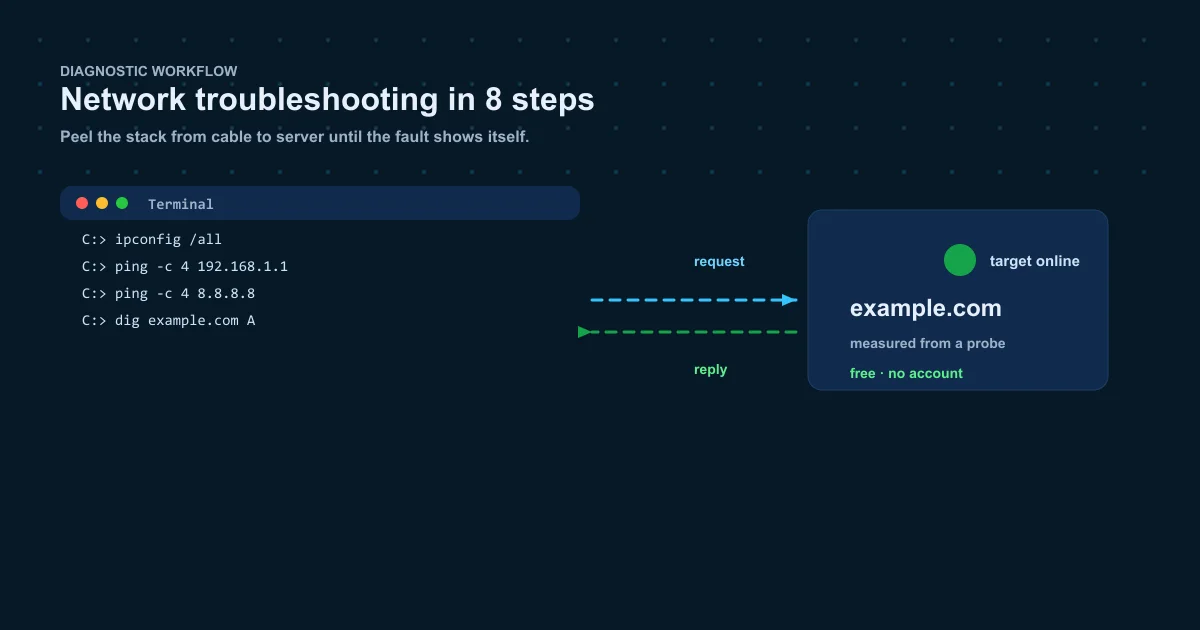
How network troubleshooting works
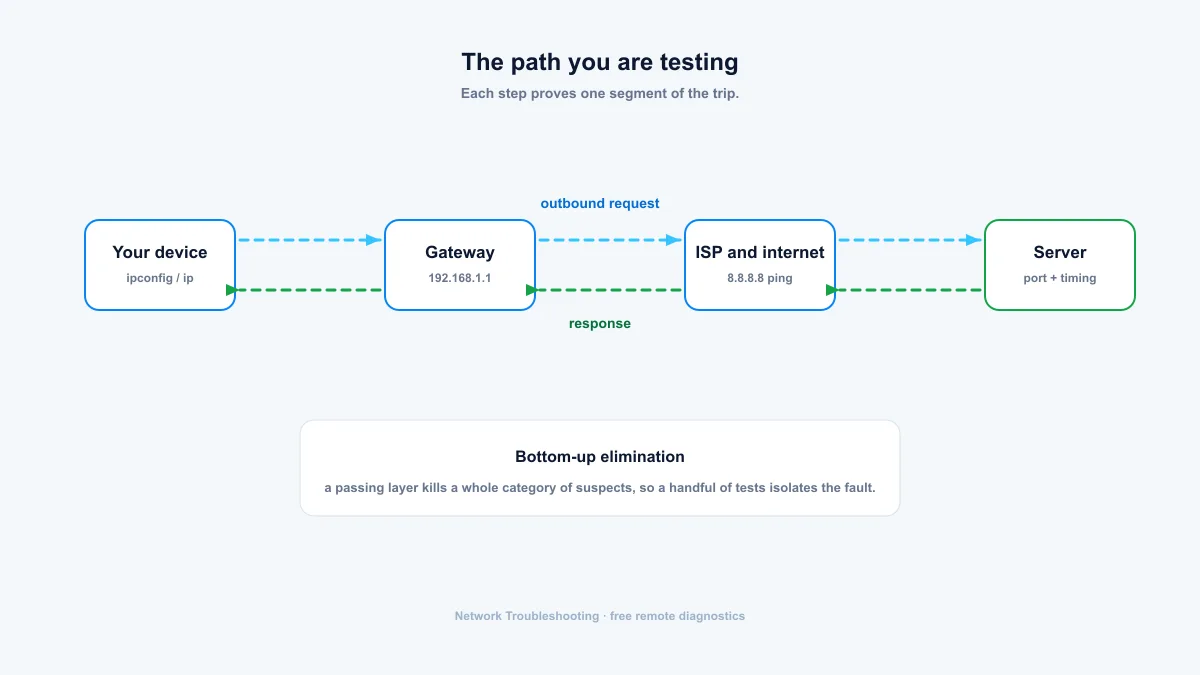
The method is elimination, and it runs bottom-up. Work from the lowest layer up: your device, the local network, the internet path, DNS, then the service you're trying to reach. Every layer that passes kills a whole category of suspects, so a handful of tests usually isolates the fault.
- Define the scope first. One device offline, or everything? If only your laptop is affected, the router is probably fine.
- Test bottom-up. Physical, then IP, then DNS, then services. The order matters because each passing layer eliminates causes.
- Ask what changed. Most faults trace back to an update, a move, a new device, or a config change.
- Correlate timing. Did it start after the storm, after a firmware update, or at 9am when the office filled up?
The 8 network troubleshooting steps
Run these in order. Stop when a step fails and fix it there: every step below depends on the ones above it.
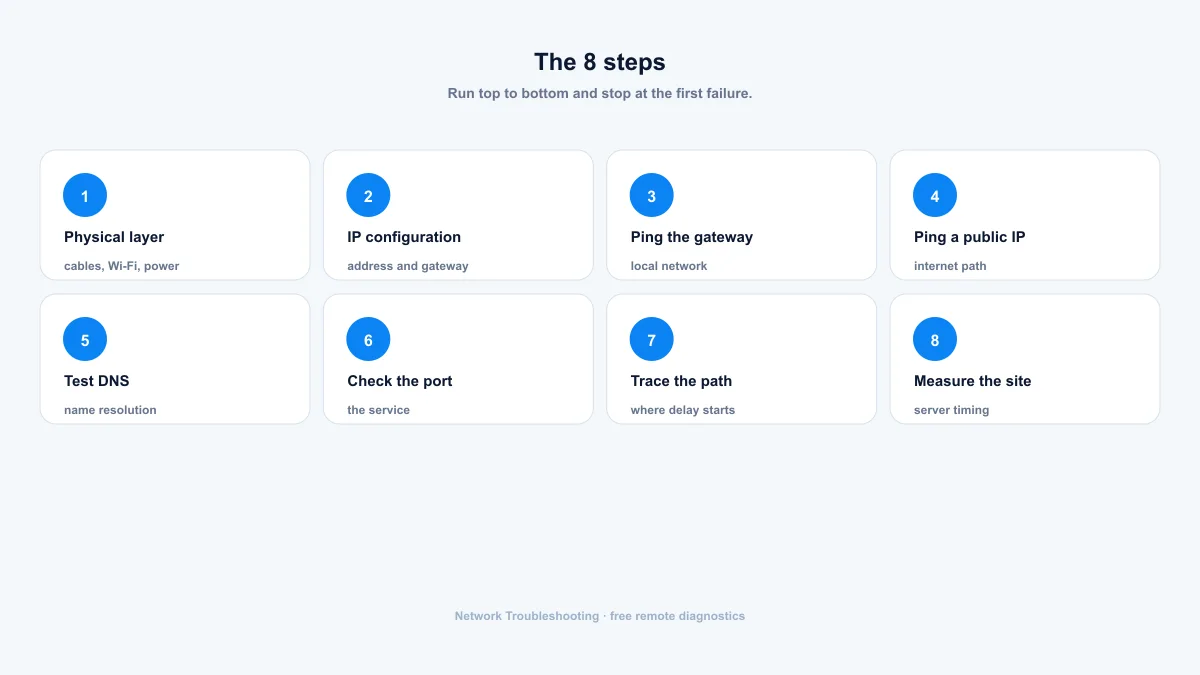
Step 1: Check the physical layer
Boring and effective. Check the Wi-Fi icon, the cables, whether other devices on the same network work, and whether the modem and router are actually powered on. Reboot them in that order while you're at it: power down, wait ten seconds, power up. This resolves more problems than every other step combined.
Step 2: Check your IP configuration
Your device needs a valid private address and a gateway. On Windows: ipconfig. On macOS and Linux: ifconfig or ip addr.
- A valid config looks like 192.168.x.x (or 10.x.x.x) with a default gateway set.
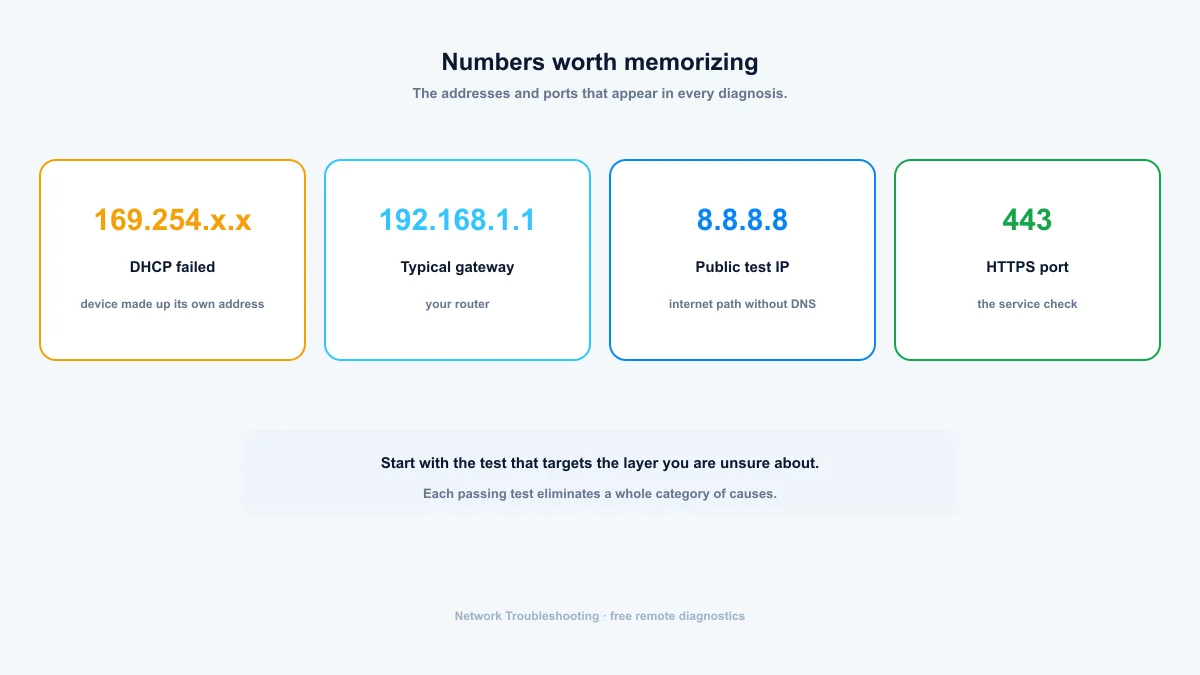
- 169.254.x.x means no DHCP lease: router, Wi-Fi, or cable issue.
- An IPv6-only config with no IPv4 address is unusual on home networks.
ipconfig /all
ip addr
Step 3: Ping your gateway
The gateway is your router, almost always 192.168.1.1 or 192.168.0.1; step 2 tells you which. Ping it.
- If the gateway answers cleanly, your local network is fine and the fault is beyond it.
ping -c 4 192.168.1.1Step 4: Ping a public IP
Now ping 8.8.8.8 or any public IP. This tests the internet path without involving DNS.
- Fails after the gateway worked: the fault is between your router and the internet, so ISP, modem, or the cable to the modem.
- Works: the internet path is fine, and the problem is DNS or the destination itself.
ping -c 4 8.8.8.8Step 5: Test DNS resolution
If IPs ping fine but hostnames don't, DNS is the problem. Check what a hostname resolves to, then ask a second resolver to be sure.
dig example.com A
dig @8.8.8.8 example.comStep 6: Check the service port
Routing and DNS can be perfect while the service itself is down. Test the port the service uses, usually 443 for web.
- A filtered or closed answer from the internet means a firewall, port forwarding that never happened, or the server is genuinely down.
- For your own services this is the step that separates "it works on my machine" from "it works for everyone."
Step 7: Trace the path
If reachability is fine but things are slow, find where the delay starts. A traceroute shows each hop and its latency, so a jump at one hop marks the problem link.
Step 8: Measure the site
The last test breaks a web request into DNS, TCP, TLS, first-byte and total times. It answers whether the server itself is slow, which routing and DNS tests can't.
A network troubleshooting checklist
The whole method on one screen. Run top to bottom.
- Physical: cables seated, Wi-Fi icon shows connected, other devices online, modem and router rebooted.
- IP config: valid private address, gateway set, no 169.254.
- Gateway: ping loss under a few percent.
- Internet: a public IP pings (8.8.8.8).
- DNS: hostnames resolve, and a second resolver agrees.
- Service: the port you need answers from outside.
- Path: no sustained loss or latency jump in the trace, and site timing matches distance.
Which tool for which symptom
Not sure where to start? Match the symptom to the step.
| Symptom | Run this | What a bad result means |
|---|---|---|
| One device has no internet | Step 2: IP configuration | No DHCP lease (169.254) on that device |
| Everything offline, router lights odd | Steps 1-3: physical, gateway | Cable, Wi-Fi, or router fault |
| Sites load by IP but not by name | Step 5: DNS | Resolver failure or broken records |
| Entire network offline | Step 4: public IP ping | ISP, modem, or connection fault |
| Site works for others, not for you | Step 7: traceroute | Path or firewall between you and the host |
| Service reachable only on your LAN | Step 6: port check | NAT or firewall not letting it out |
| Site is slow | Step 8: website speed | Server, CDN, or route problem |
When the tools run out
These tests find where a problem lives, not always why. A filtered port can mean three different things, and a traceroute that dies at your ISP's edge usually needs the ISP to look at it. That's fine: you now have evidence, and a support ticket with concrete test results gets answered faster than one without. Screenshot the outputs and attach them.
Summary: isolate the layer, then prove it
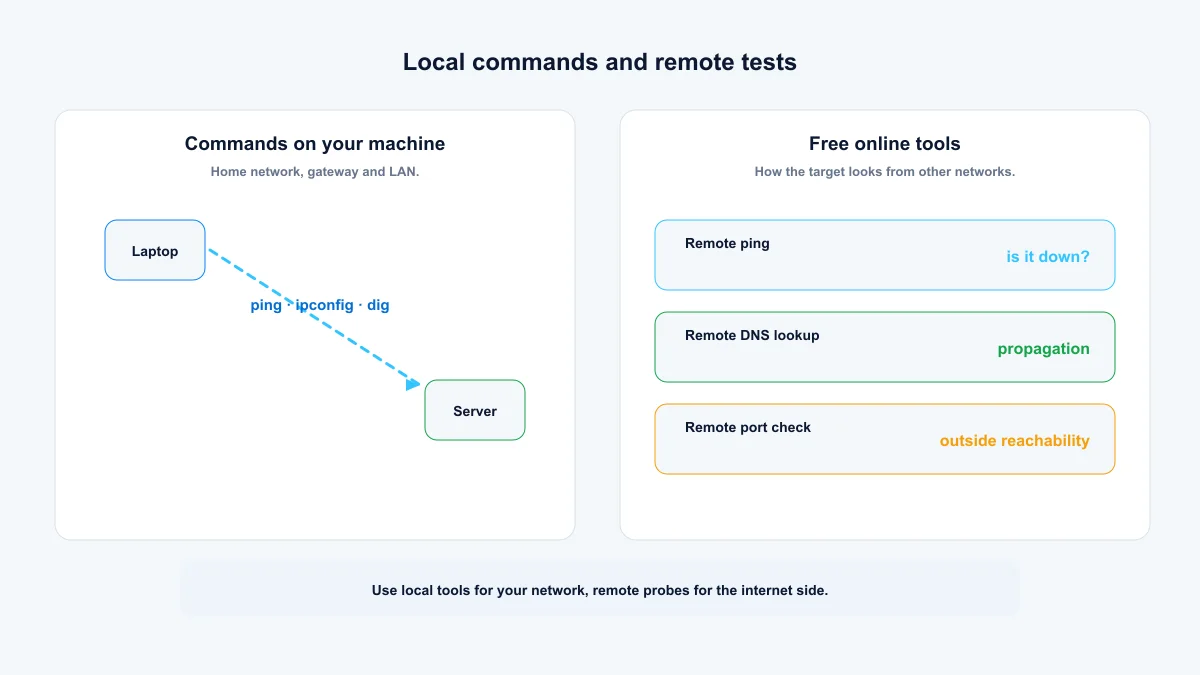
Network troubleshooting is elimination in order. Work the eight steps bottom-up and stop at the first failure: your device, the gateway, the internet path, DNS, the service port and finally the site itself. Local commands prove your own network; the free tools on this site prove the public side — online ping, DNS lookup, TCP port check, traceroute and website speed test — so you can separate "my network" from "the internet".
- 169.254.x.x means DHCP failed; 8.8.8.8 tests the path without involving DNS.
- Every passing layer eliminates a whole category of causes.
- A support ticket with concrete test outputs gets answered faster than a vague one.
Frequently asked questions
What is the first step in network troubleshooting?
Check the physical layer and define the scope: is it one device or everything? Cables, Wi-Fi, power, and a modem and router reboot fix more problems than any command does. Then work up the stack from there.
How do I know if the problem is my network or the website?
Test from somewhere else. The online ping and traceroute tools on this site run from probes in other regions; if the site is slow or down there too, it's not your network. If it's fine everywhere but at home, the fault is local.
What does 169.254 mean?
Your device asked for an IP address and got no answer, so it assigned itself a link-local one. DHCP is failing: check the router, the cable, or the Wi-Fi connection.
What order should I run network diagnostics in?
Bottom-up: physical layer, IP configuration, gateway, public IP, DNS, service port, then path. Each passing test eliminates a category of causes and tells you what to run next.
Do online tools test my home network?
No. Remote probes measure the internet side, meaning how a host looks from other regions. For your home network you need the local commands in the steps above. The two sides together give you the full picture.